
Stop Fighting With Elementor: The Simple Workflow for Perfect Blog Posts
Published 24 August 2025

Many bloggers spend more time arranging widgets in Elementor than writing. You style one post carefully, then repeat the work for the next one. Separating the writing from the design removes that repetition.
The idea is to keep content in WordPress and design in Elementor. Think of a letter and its stationery: the words stay the same while the presentation changes. Your content is the letter, and your Elementor template is the stationery. This guide walks through a no-code process to set it up.
The big idea: content in WordPress, design in Elementor
Each tool does what it does best:
For writing and managing your content. It is fast, clean and free of distractions.
For designing the container your content lives in. You set the layout, colours and fonts here, once.
The key is an Elementor feature called the Single Post Template. It is your master design, the stationery. Inside it you place one important widget, the Post Content widget. It acts as a placeholder that pulls in whatever you have written in the standard WordPress editor and displays it.
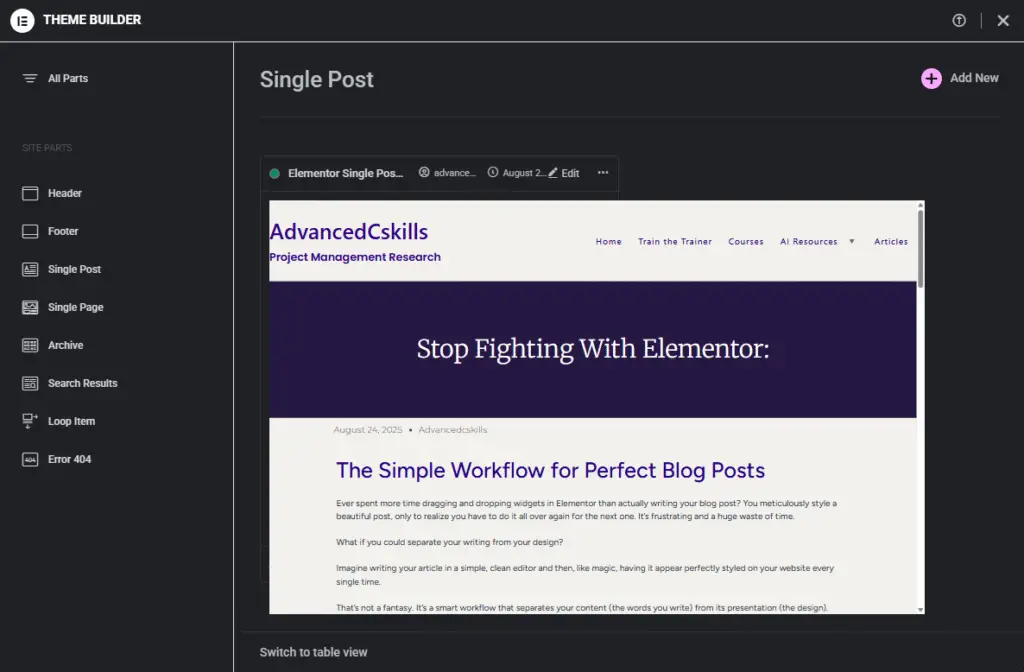
Step 1: Create your master layout in Elementor
You only need to do this once.
- In your WordPress dashboard, go to Templates > Theme Builder.
- Select Single Post and click Add New.
- Design your blog post layout. Add your header, footer and, if you like, a sidebar.
- Drag the Post Content widget into the main area. This widget is the window where all your articles will appear.
- Set the typography and spacing in the Post Content widget's settings, so every post has consistent fonts and styles.
- Click Publish and set the display conditions to All Posts.
Your master template is now live. Any article you publish will use this design.
Step 2: Write your post
You can write directly in the WordPress editor, or draft in an external tool such as ChatGPT. Either way, the goal is clean HTML. If you use ChatGPT, a prompt like this works:
“Write my article as clean, semantic HTML. Only use headings (h2, h3), paragraphs, and lists. Do not add any styling.”
This gives you a clean foundation to paste into WordPress. If AI wrote the draft, review it for accuracy before you publish.
Step 3: Paste, convert and save
This step uses the Gutenberg code editor, then converts the pasted HTML into blocks.
- In WordPress, go to Posts > Add New.
- In the top-right corner of the editor, click the three vertical dots and choose Code editor.
- Paste the clean HTML you wrote or generated. It will look like code, which is expected.
- Click the three dots again and switch back to the Visual editor.
- Your content appears in a Classic or HTML block. Click the block, open the block toolbar's three dots, and choose Convert to blocks.
- WordPress converts the HTML into native Gutenberg blocks (headings, paragraphs, lists) that you can edit as normal.
Step 4: Publish
Add your title, set a featured image and click Publish. When you view the post, your content appears inside the master layout you built in Elementor. After that:
Edit the post in Gutenberg.
Edit the Single Post template in Elementor.
Keeping the two apart makes a blog easier to manage.
Check it as a visitor. Open the published post in a private (incognito) window, where you are not logged in, to see exactly what readers see. Confirm the title, image and layout all appear.
Bonus: reusable highlight boxes
Callout boxes for tips or warnings can be created once and reused anywhere.
- Design a “Highlight Box” as a Saved Template in Elementor. Go to Templates > Saved Templates and copy that template's shortcode. It looks like [elementor-template id="123"], with your own template's ID in place of 123.
- When writing in the Gutenberg editor, paste the shortcode where you want the box to appear.
If you later change the design of your highlight boxes, edit the one saved template and every box updates. To style the boxes, add this CSS under Elementor's Site Settings > Custom CSS:
/* highlight callout */
.blog-highlight {
border-left: 4px solid #ffcc00;
background: rgba(255,204,0,0.06);
padding: 18px;
margin: 12px 0;
border-radius: 6px;
font-weight: 600;
}
Then add the CSS class blog-highlight to your saved template's section settings, under the Advanced tab.
The setup takes a few minutes and saves time on every later post, so you can spend it on the writing.
Update: a newer editor, and an AI route to it
This guide describes the classic Single Post template workflow, which still works. Elementor has since released Editor V4, built on new “atomic” elements with a unified styling system. Elementor says all new sites run on it by default from April 2026, and that atomic elements can be mixed with existing widgets on the same page, so existing layouts do not need to be rebuilt.
Elementor has also launched an MCP connection (Model Context Protocol). It lets AI tools such as Claude, Codex and Cursor build and edit pages on an Elementor site. Only administrators can turn it on, from the Elementor settings in the WordPress dashboard. Elementor states that connecting is free, that the AI tool and any Elementor Pro features have their own costs, and that what the AI builds is saved as a draft and stays editable in the visual editor.
It is worth thinking about as a way to speed up layout work. If you try it, review everything the AI builds before you publish, view the result while logged out, and treat the connection like any other site credential: it uses an application password, so keep it private.
View the project files on GitHubKeep reading
More on AI, construction, education and project management.